
Claude Desktop
Connect Claude Desktop to Z-Mint AI and use the Anthropic Messages API end-to-end.
Overview
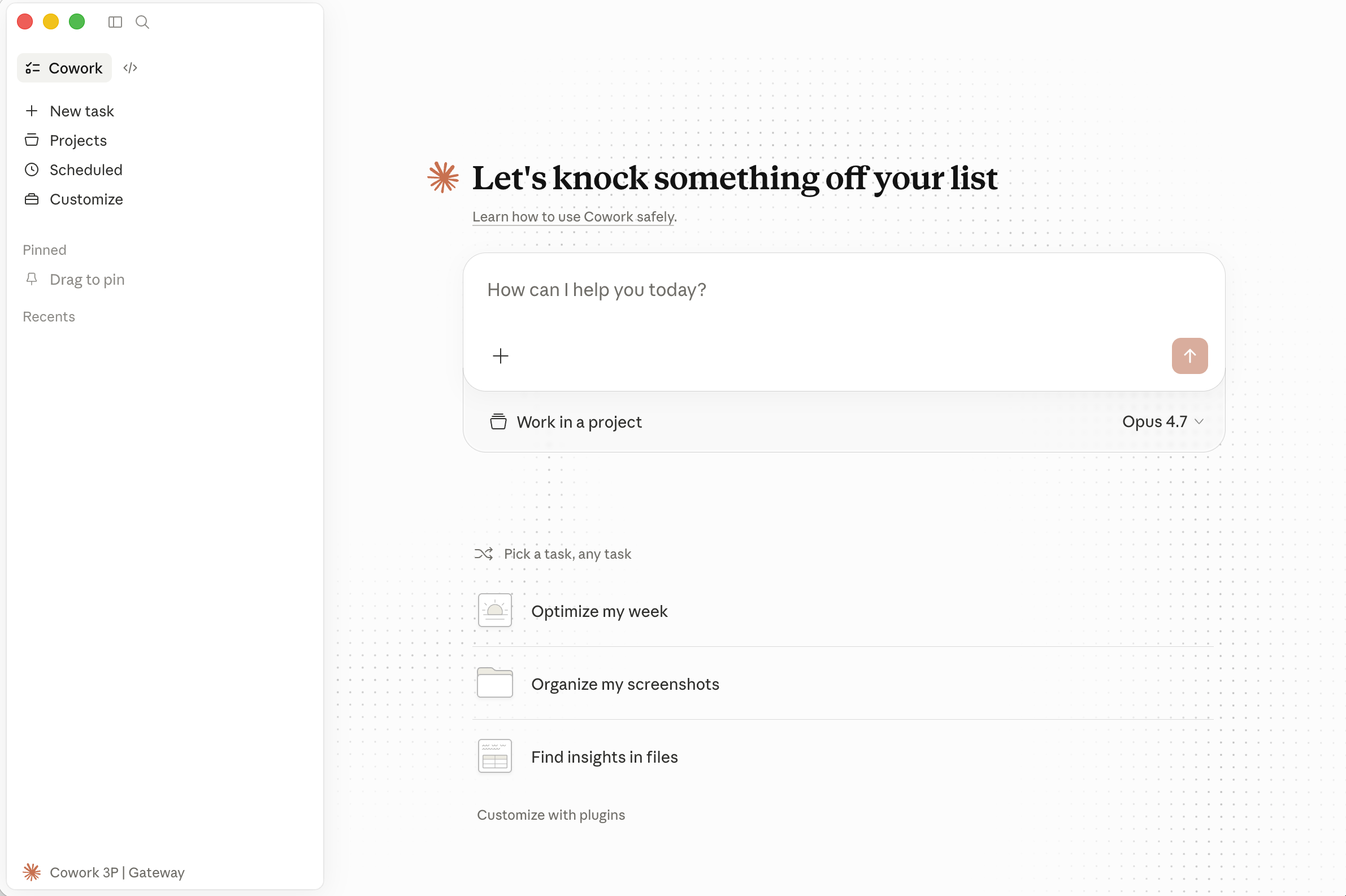 Claude Desktop is Anthropic’s official desktop app for using Claude locally. This guide explains how to connect Claude Desktop to Z-Mint AI API and use Z-Mint AI to access models compatible with the Anthropic Messages API. This guide covers:
- Installing Claude Desktop
- Enabling Developer Mode
- Configuring the Z-Mint AI connection
- Restarting and selecting a model
Prerequisites
Before you start, prepare your Z-Mint AI API Key.
Get an Z-Mint AI API Key
- Log in to the Z-Mint AI Console
- Find API Keys in the console, click Create New Key, then copy the generated key
- API keys usually start with
sk-; keep them safe
Step 1: Download Claude Desktop
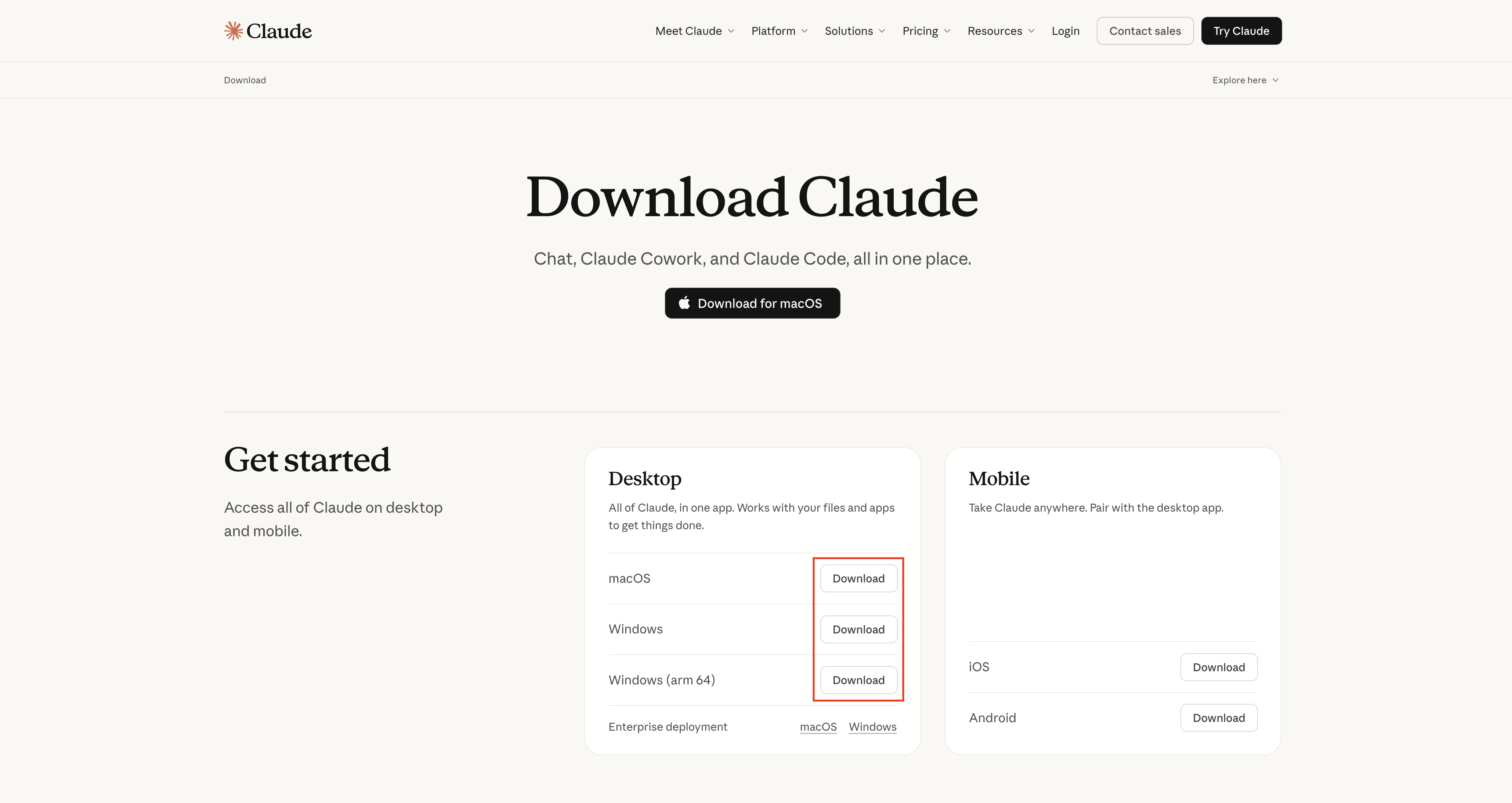
Visit the Claude Desktop download page and install the version for your operating system.
Tip: If Claude Desktop is not installed yet, complete the installation before continuing.
After installation
After installation, confirm that Claude Desktop starts normally.
Step 2: Enable Developer Mode
- macOS
- Windows
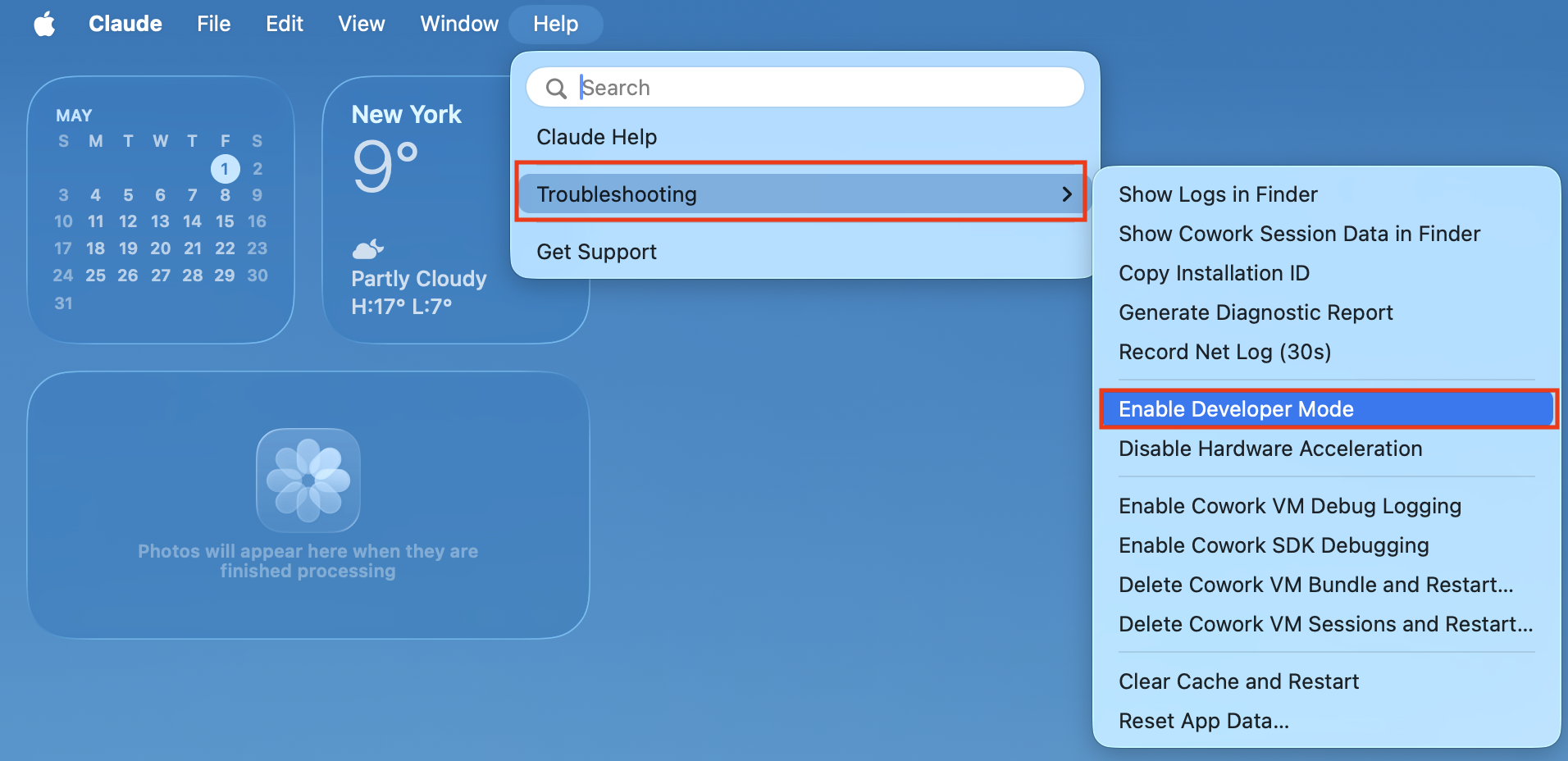
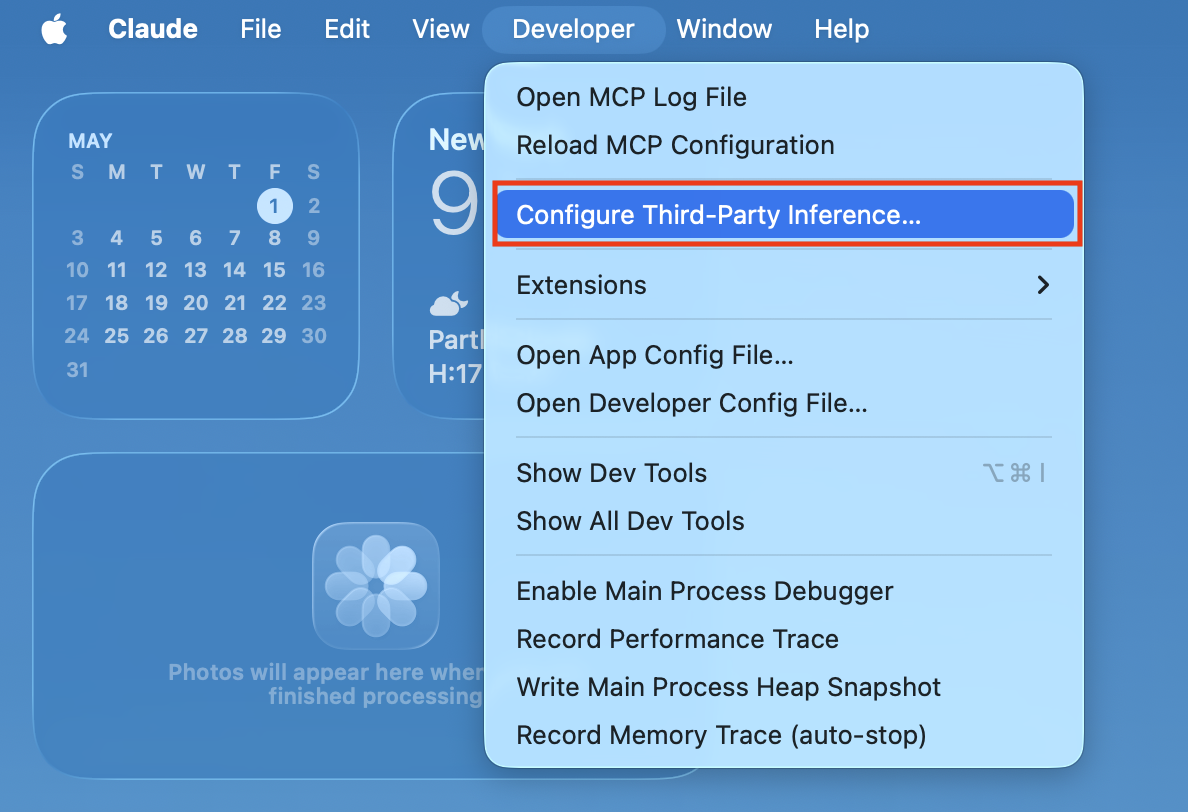
After launching Claude Desktop, click Help → Troubleshooting and enable Developer Mode in the dialog.Once enabled, a Developer menu entry appears for third-party inference configuration.
Tip: If you do not see the Developer entry, confirm that your Claude Desktop version supports Developer Mode and third-party inference settings.
Before using Gateway / Cowork mode, enable the Windows virtual machine platform feature:
- Press
Win + R - Enter
optionalfeatures, then pressEnter - In Windows Features, check Virtual Machine Platform
- Click OK
- Restart your computer if Windows prompts you to do so
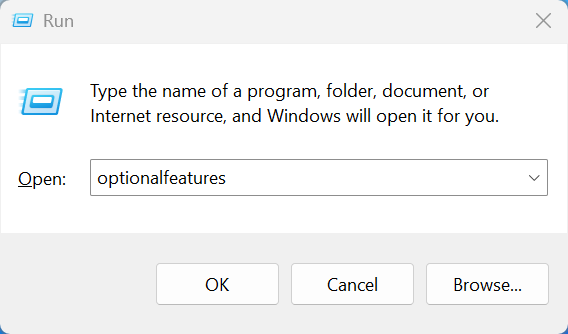
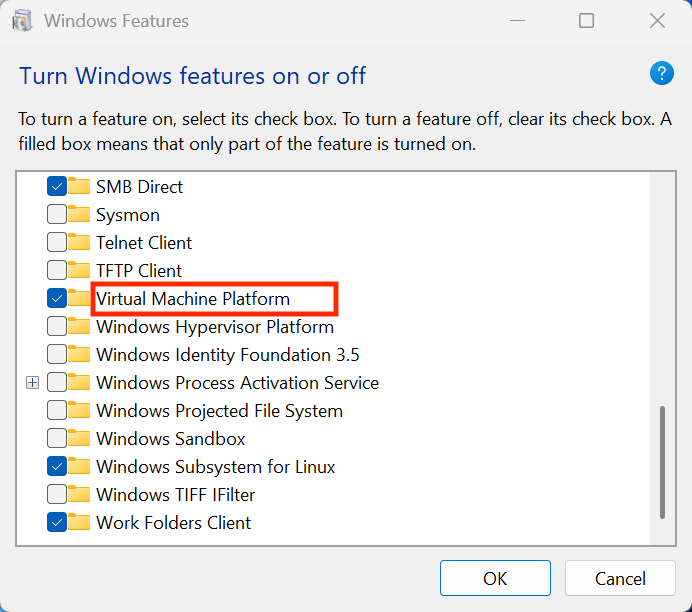
After that, launch Claude Desktop, click Help → Troubleshooting, and enable Developer Mode in the dialog.Once enabled, a Developer menu entry appears for third-party inference configuration.
Tip: If you do not see the Developer entry, confirm that your Claude Desktop version supports Developer Mode and third-party inference settings.
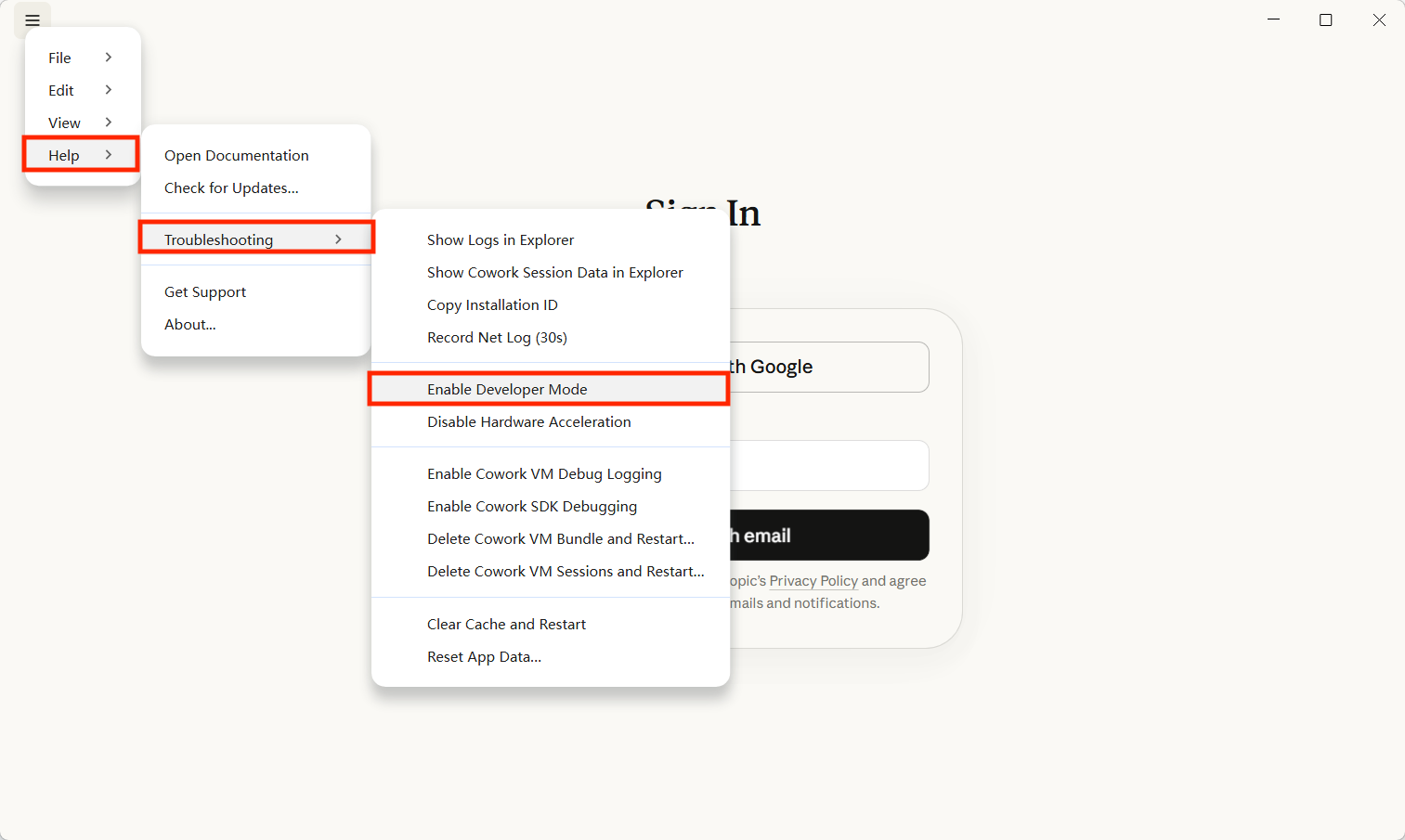
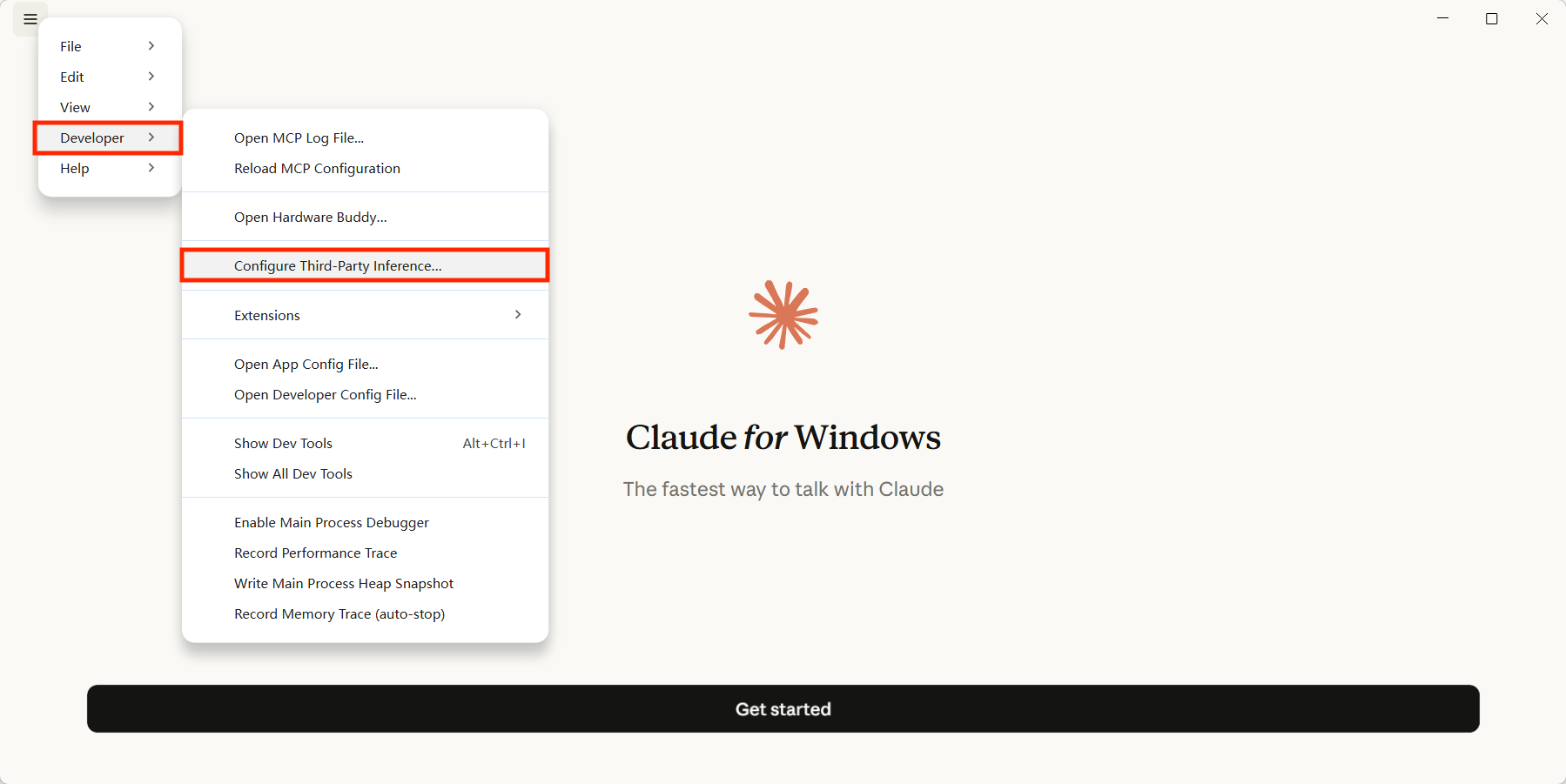
Step 3: Open Third-Party Inference Settings
In the Developer menu, open the third-party inference panel and fill it in as shown below:
FieldDescriptionGateway base URLZ-Mint AI gateway address, recommended value: https://aigc.zhengmi.orgGateway API keyEnter your Z-Mint AI API Key directly, without the Bearer prefixGateway auth schemebearerModel listRecommended. Add only text/chat model IDs that support the Anthropic Messages API. You can also jump to the supported models table below
Note: If the field names in your Claude Desktop version are slightly different, use the actual interface labels, but keep the meaning the same.
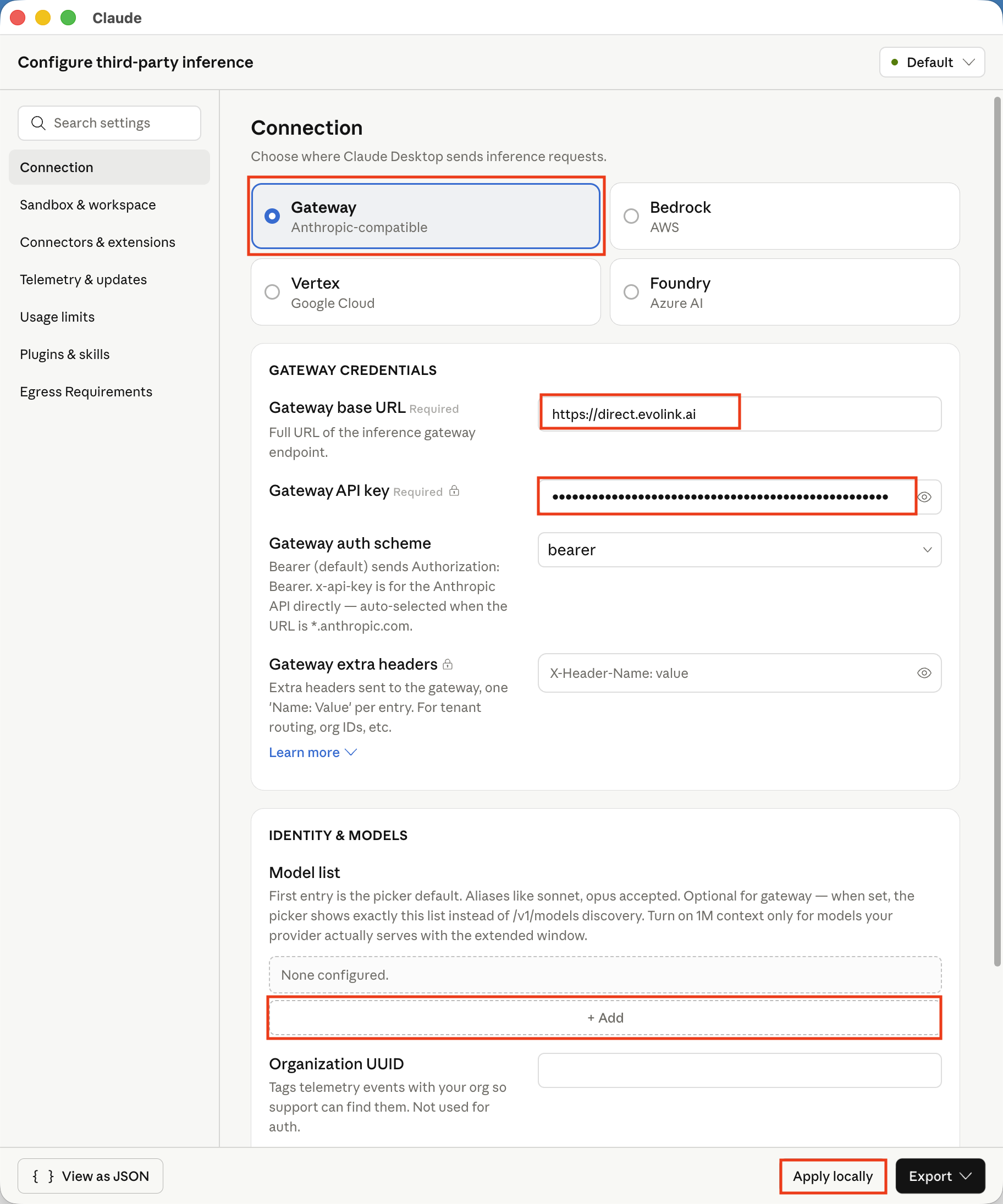
Step 4: Save and Restart
After saving the configuration, fully quit Claude Desktop, then launch it again.
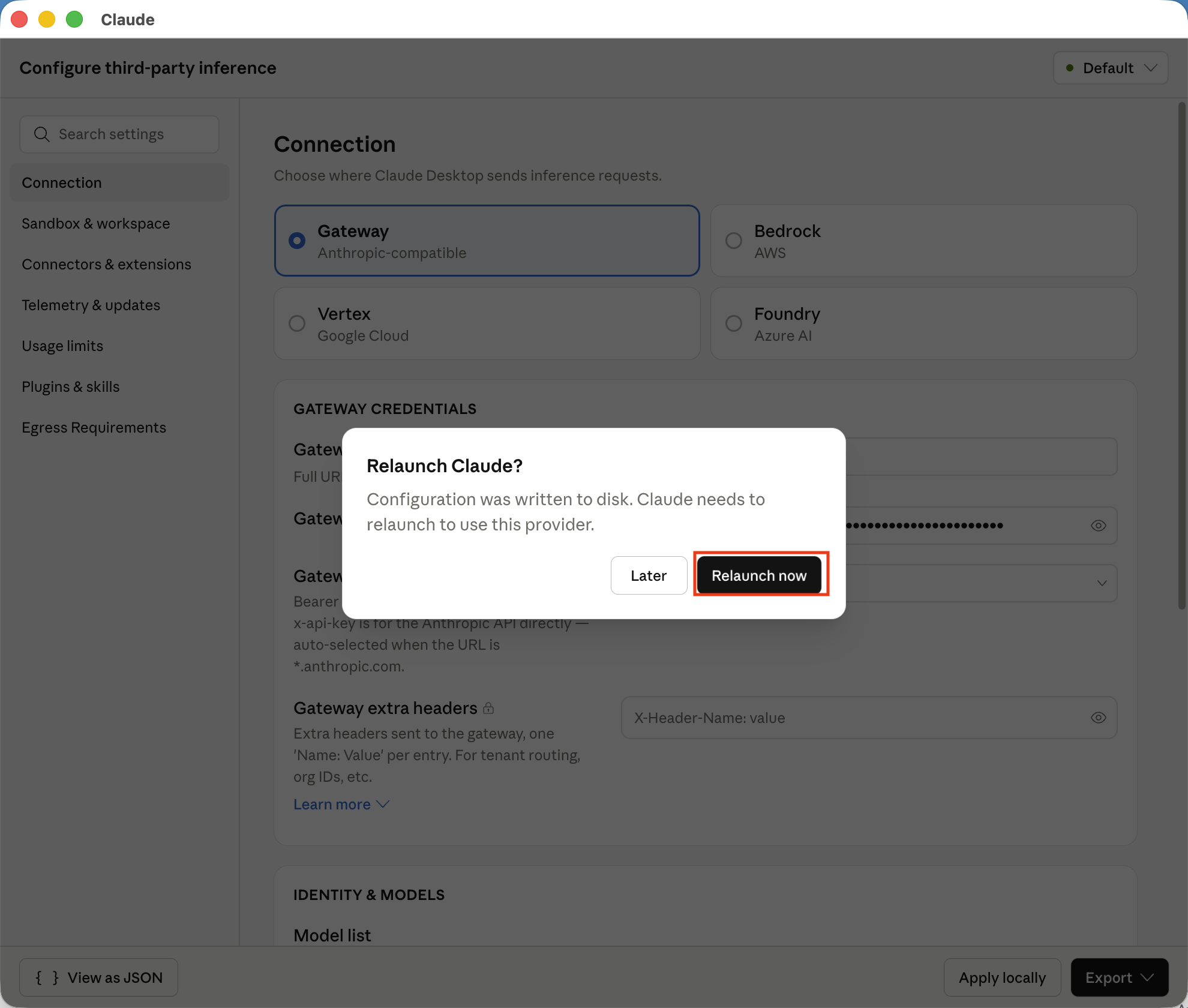
After restarting, Claude Desktop should use the new third-party inference configuration. Expected result: After launch, you should see the available model list and requests should be routed through Z-Mint AI.
Step 5: Choose a Model
After restarting, check the model selector to confirm that the available models appear correctly.
How It Works
Claude Desktop communicates with Z-Mint AI through an Anthropic-compatible gateway:
- Claude Desktop sends requests to the gateway address you configured.
- Z-Mint AI receives the request and forwards it to the corresponding model service.
- After the response returns, Claude Desktop continues showing the conversation locally.
No extra local proxy is required.
Supported Models
If you want to restrict the visible models in Model list, you can use the following model IDs.
Model IDclaude-haiku-4-5-20251001``claude-sonnet-4-5-20250929``claude-opus-4-1-20250805``claude-sonnet-4-20250514``claude-opus-4-5-20251101``claude-sonnet-4-6``claude-opus-4-6``claude-opus-4-7``deepseek-v4-flash``deepseek-v4-pro
FAQ
Developer menu does not appear
Confirm that Developer Mode is enabled and that Claude Desktop has been fully restarted.
I cannot connect after configuring it
Check the following:
- Whether the base URL is correct
- Whether the API key is valid
- Whether the authentication scheme is
bearer - Whether Claude Desktop has been fully closed and reopened
I cannot see any models
Confirm that your account and network are working normally, then check whether the third-party inference settings were saved successfully.
Do I need to fill in Model list?
Yes, it is recommended. Add only text/chat model IDs that support the Anthropic Messages API.
What should I enter if I want to specify models manually?
Use the model IDs in the “Supported Models” table above and format them as required by Claude Desktop.