
OpenClaw Auto Install
One-line installer for OpenClaw, Z-Mint AI's smart-routing CLI on top of Claude Code.
Overview
OpenClaw Manager is a visual management tool that helps you quickly install, configure, and manage OpenClaw instances. No manual config editing required — just 3 steps to deploy. Two messaging channels are supported:
TelegramFeishu (Lark)ConnectionBot API (long polling)WebSocket persistent connectionCredentials neededBot Token + your User IDApp ID + App SecretPlatform setupCreate a Bot onlyCreate an app + enable WebSocket subscriptionUser authBound by User ID — only authorized users can chatAny user who can message the Bot can chatBest forPersonal use, international usersTeam collaboration, users in China
System Environment Check
Before installation, it’s recommended to run the environment checker tool to ensure your system meets OpenClaw’s requirements.
Download Checker Tool
Download the checker tool for your platform from GitHub Releases:
PlatformFilenameWindowsopenclaw-checker-win-x64.exemacOS (Intel)openclaw-checker-macos-x64macOS (Apple Silicon)openclaw-checker-macos-arm64Linuxopenclaw-checker-linux-x64
Check Items
The tool automatically checks the following:
- ✅ Node.js version (requires >= 22.12.0)
- ✅ npm available
- ✅ Git available
- ✅ Network connectivity (github.com, npmjs.org, aigc.zhengmi.org)
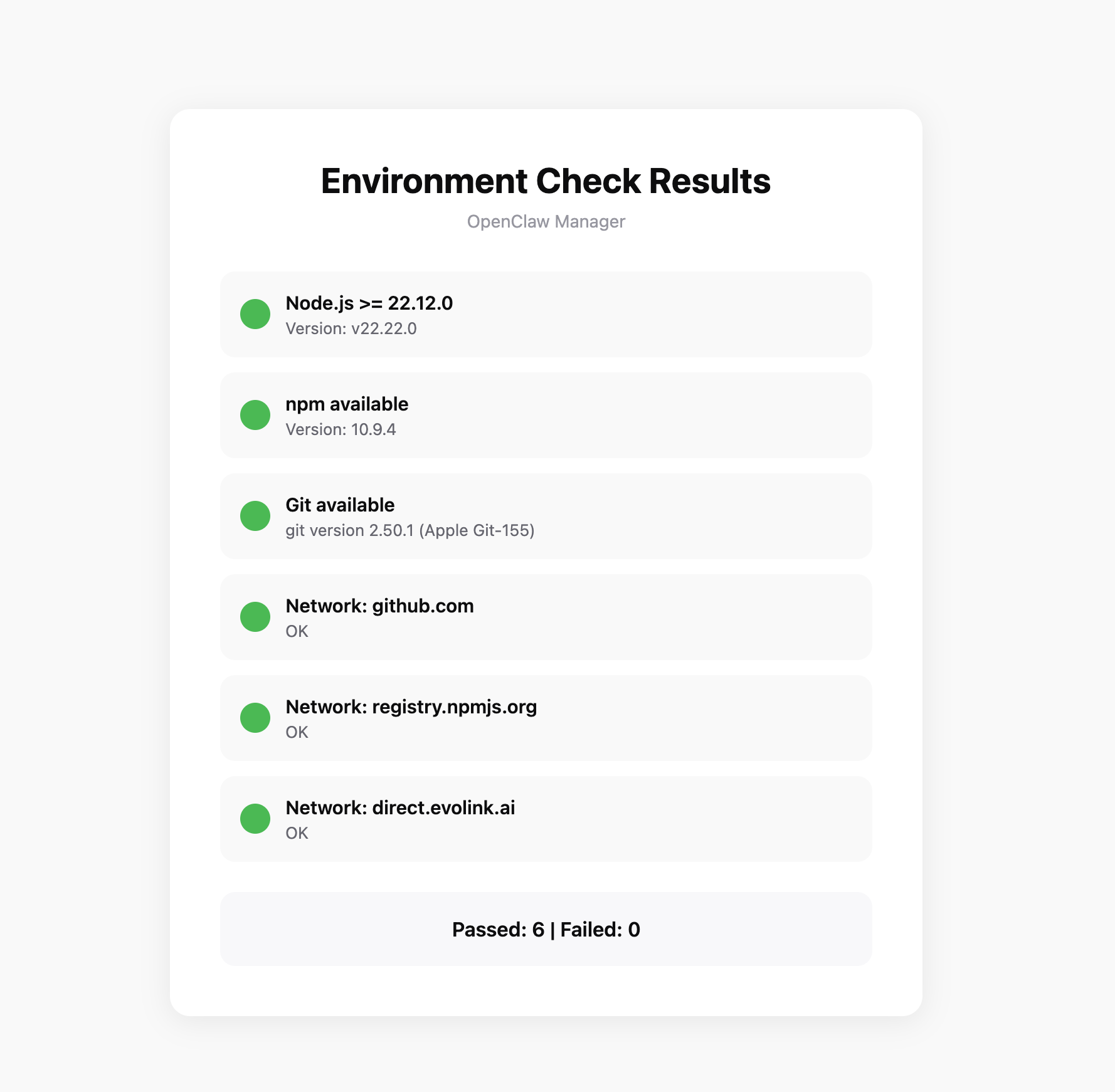 If the check fails, the tool will provide specific fix suggestions.
Prerequisites
1. Install Node.js
OpenClaw Manager requires Node.js 22 or higher.
- Windows
- macOS
Visit Node.js official website, download the Windows installer (.msi file), and run the installation program.After installation, open PowerShell to verify:
node --version
npm --version
It’s recommended to run PowerShell as administrator to avoid permission issues during installation.
Method 1: Using InstallerVisit Node.js official website, download the macOS installer (.pkg file), and run the installation program.Method 2: Using Homebrew
brew install node
After installation, open Terminal to verify:
node --version
npm --version
If you encounter permission issues during installation, you may need to add sudo before the command.
2. Install Git
OpenClaw depends on Git for version management and plugin installation.
- Windows
- macOS
Visit Git official website, download the Windows installer, run the installation program, and complete the installation with default options.After installation, open PowerShell to verify:
git --version
Method 1: Using Homebrew (Recommended)
brew install git
Method 2: Using Xcode Command Line Tools
xcode-select --install
After installation, open Terminal to verify:
git --version
3. Get Z-Mint AI API Key
- Log in to Z-Mint AI Console
- Find API Keys in the console, click “Create New Key”, then copy the generated Key
- API Key usually starts with
sk-, please keep it safe
4. Channel Credentials
Telegram / Feishu credential setup guide
- Telegram
- Feishu
<!--THE END-->
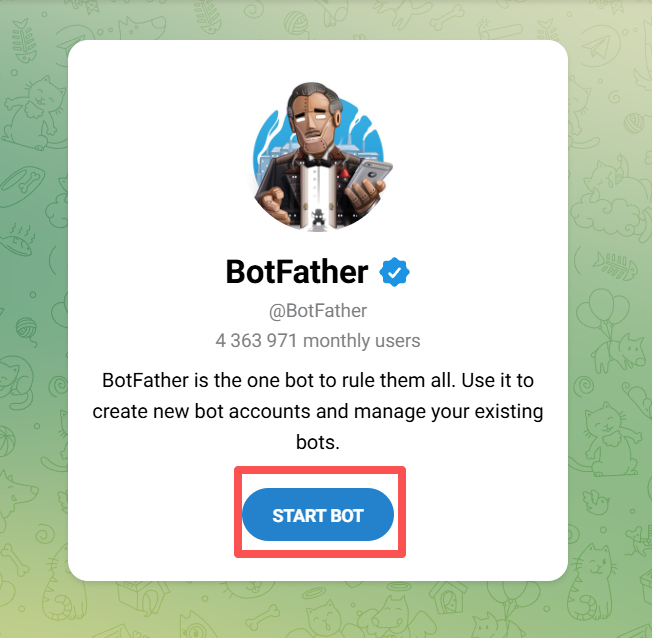
- Search for @BotFather on Telegram, click START BOT
- Send
/newbot, follow the prompts to set a name and get your Bot Token (format:123456789:ABCdef...)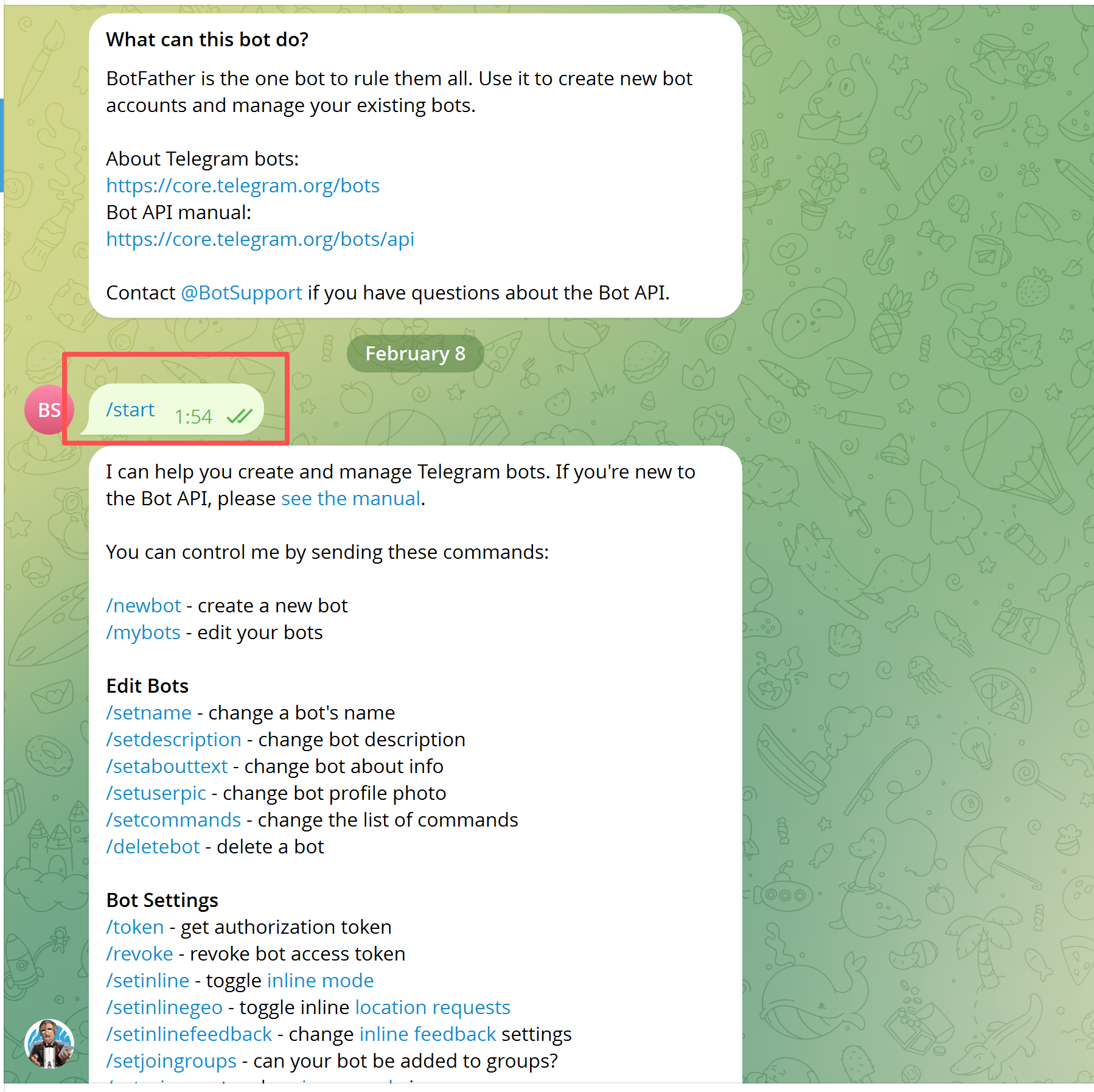
- Get your Telegram User ID: send
/startto @userinfobot and note the numeric ID
<!--THE END-->
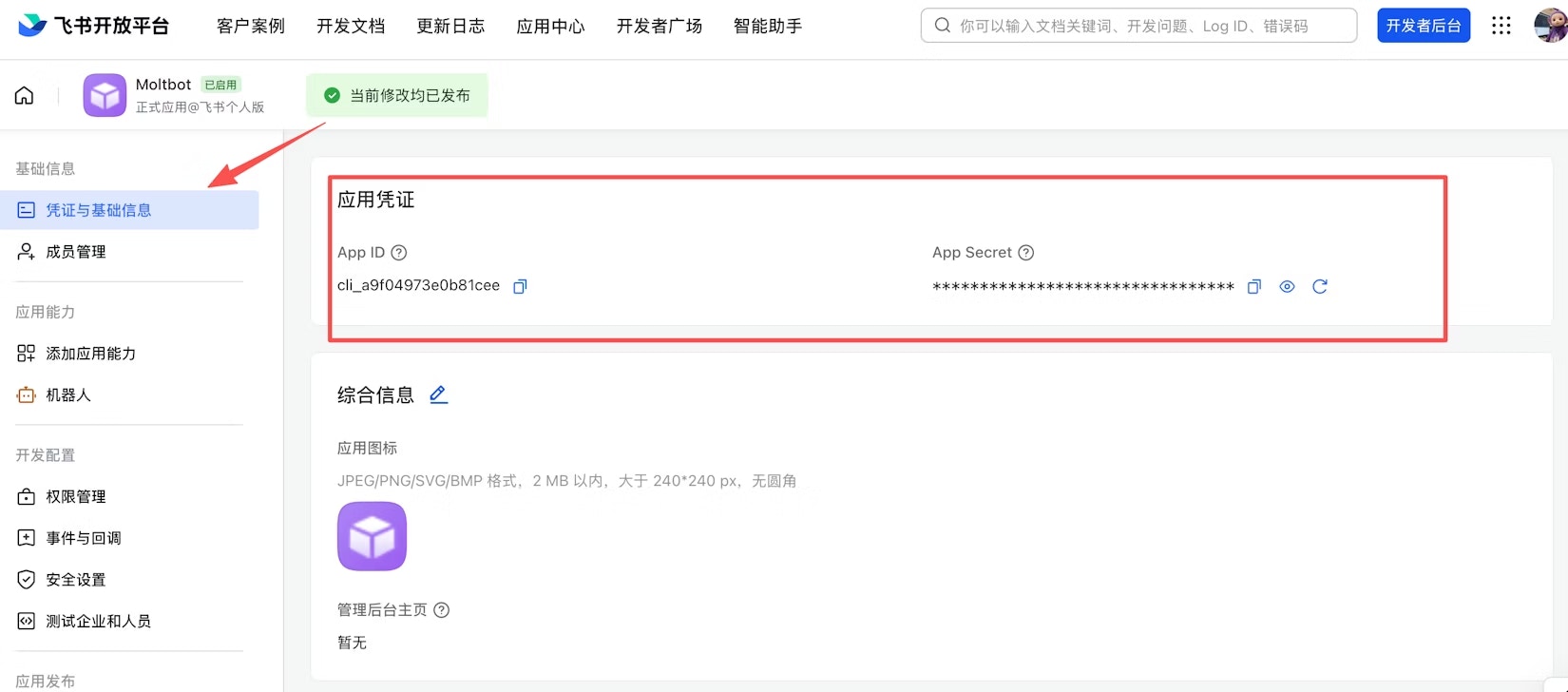
- Go to Feishu Open Platform and create a custom enterprise app

- Get the App ID and App Secret from the “Credentials & Basic Info” page
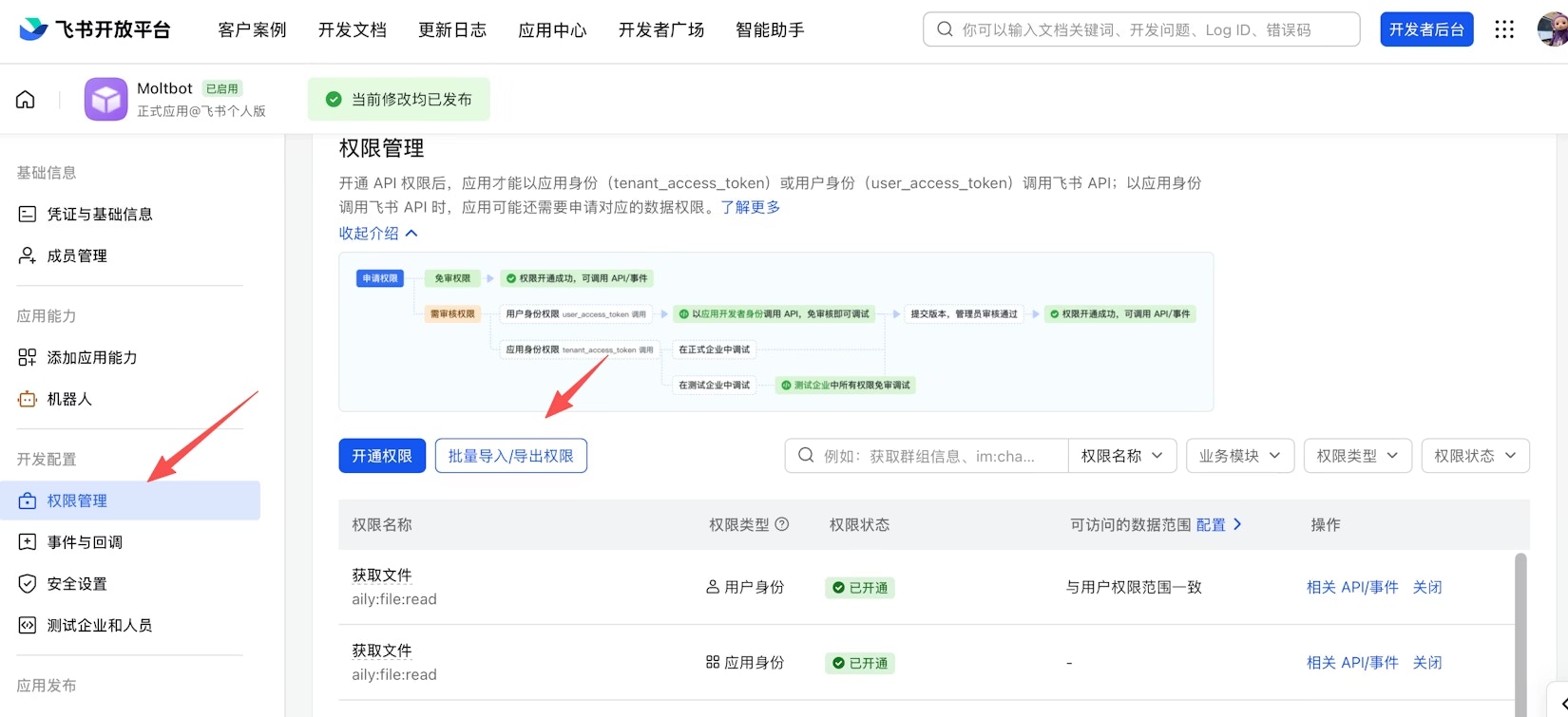
- Under “Permissions & Scopes”, click Batch Import and paste the following JSON to import all required permissions:
{
  "scopes": {
    "tenant": [
      "aily:file:read",
      "aily:file:write",
      "application:application.app_message_stats.overview:readonly",
      "application:application:self_manage",
      "application:bot.menu:write",
      "cardkit:card:write",
      "contact:contact.base:readonly",
      "contact:user.employee_id:readonly",
      "corehr:file:download",
      "docs:document.content:read",
      "event:ip_list",
      "im:chat",
      "im:chat.access_event.bot_p2p_chat:read",
      "im:chat.members:bot_access",
      "im:message",
      "im:message.group_at_msg:readonly",
      "im:message.group_msg",
      "im:message.p2p_msg:readonly",
      "im:message:readonly",
      "im:message:send_as_bot",
      "im:resource",
      "sheets:spreadsheet",
      "wiki:wiki:readonly"
    ],
    "user": [
      "aily:file:read",
      "aily:file:write",
      "im:chat.access_event.bot_p2p_chat:read"
    ]
  }
}
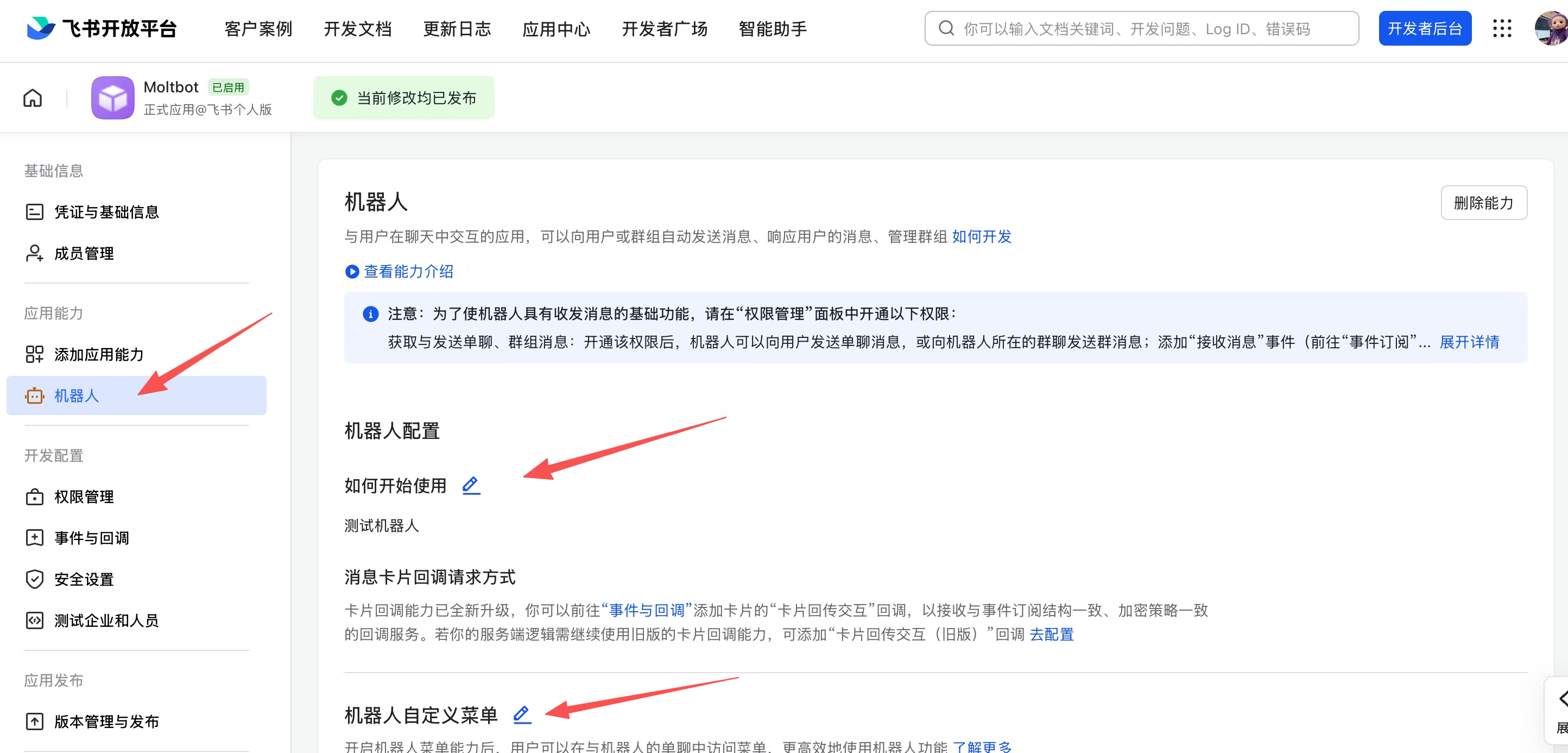
- Under “App Capabilities > Bot”, enable the bot capability and set the bot name
Feishu app basic setup is now complete. The remaining steps — event subscription and version release — must be done after the gateway is deployed and running, otherwise the long connection settings will fail to save. Complete Step 1 and Step 2 below first, then return to Feishu Open Platform to continue.
Step 1: Download & Run
Download the executable for your platform from Releases: 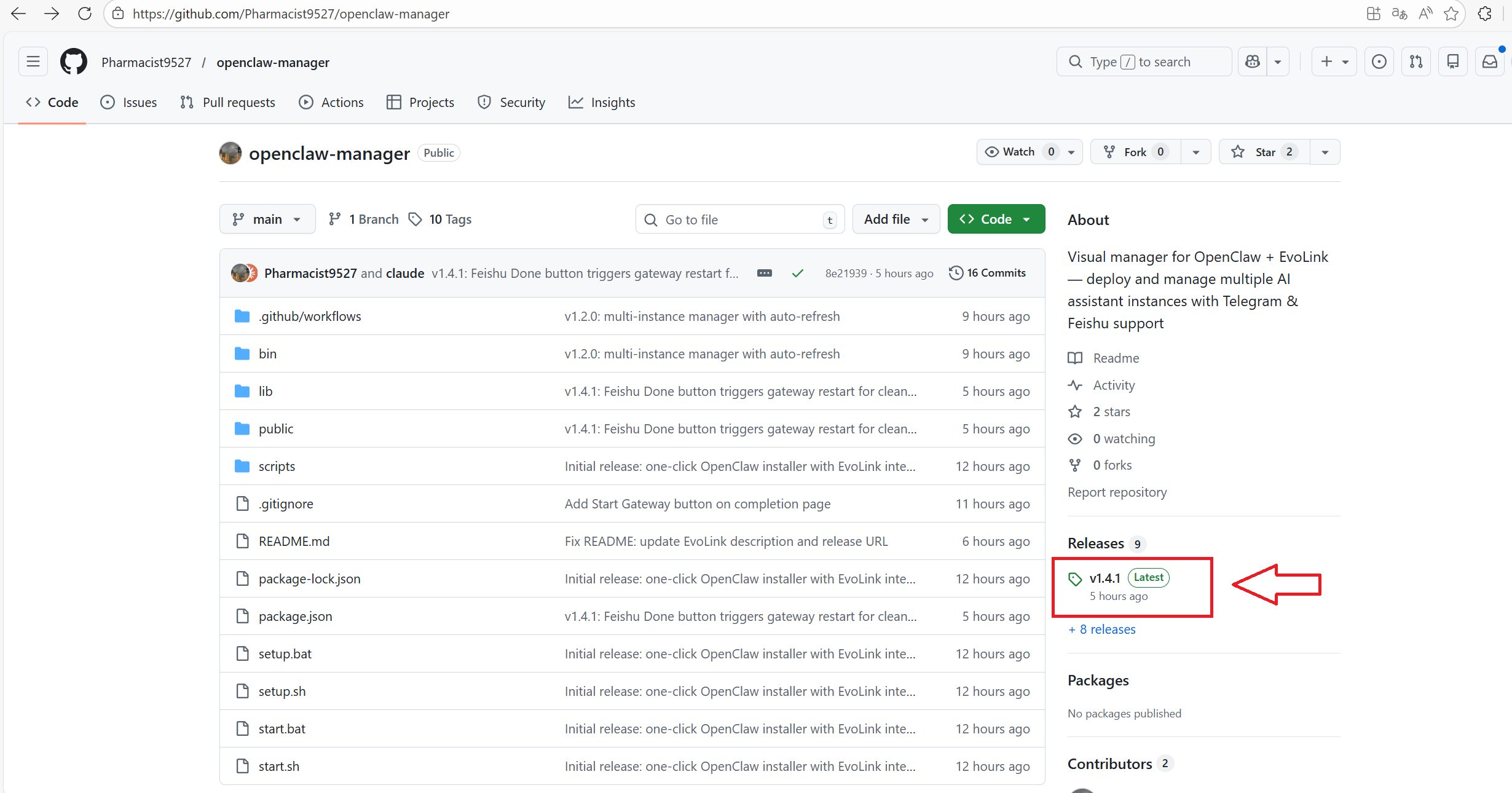
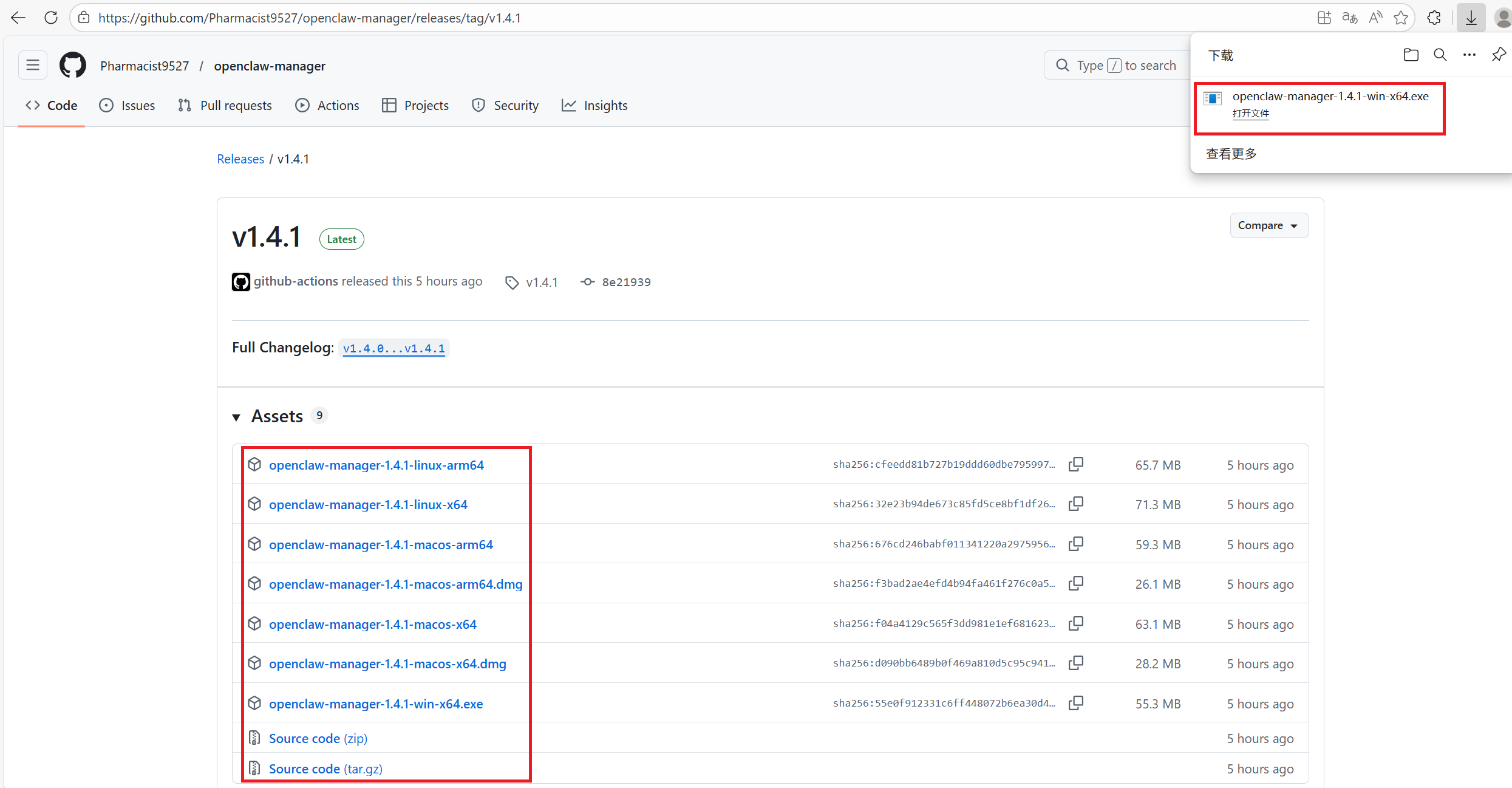
PlatformFileWindowsopenclaw-manager-win-x64.exemacOS (Intel)openclaw-manager-macos-x64macOS (Apple Silicon)openclaw-manager-macos-arm64Linuxopenclaw-manager-linux-x64
Make sure Node.js 22+ is installed.
Windows users right-click and run as administrator. macOS / Linux users run with sudo in terminal:
chmod +x ./openclaw-manager && sudo ./openclaw-manager
The script will check for and install OpenClaw if needed, then start the local web management interface and open your browser. 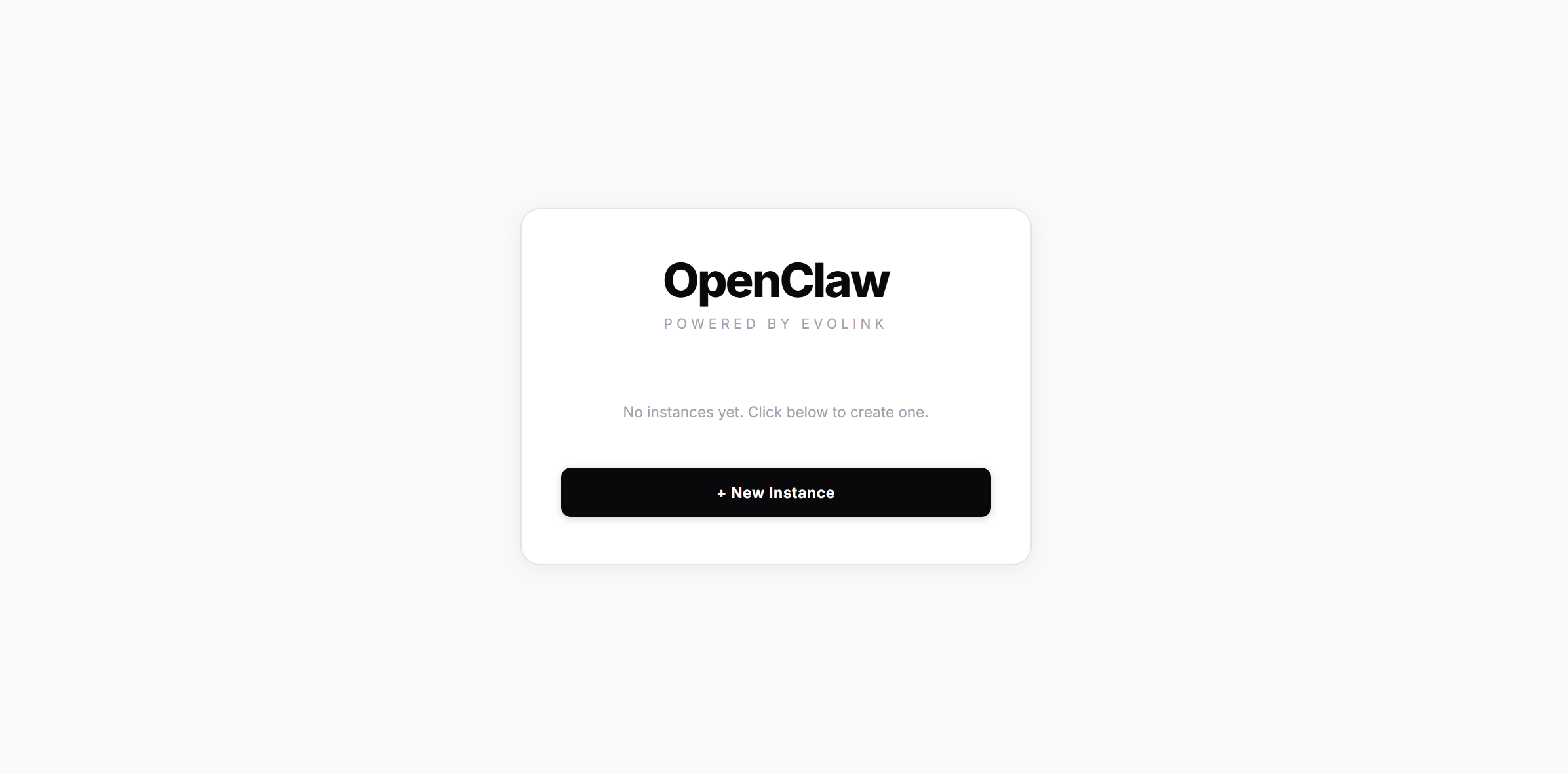
Step 2: Create an Instance
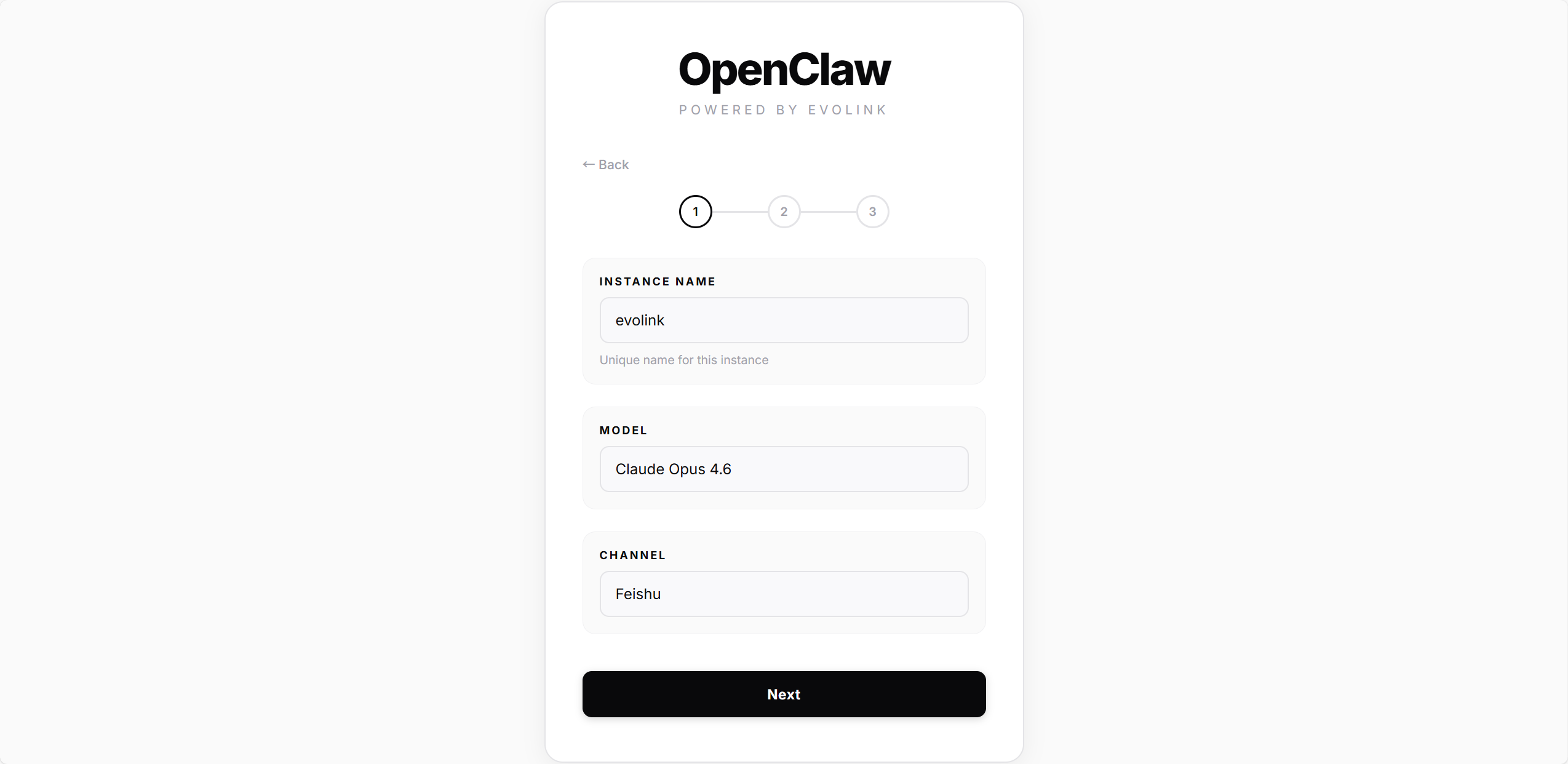
2.1 — Basic Info
FieldDescriptionInstance NameName for your instance (e.g. mybot), must be unique on this machineModelChoose a model: Haiku 4.5 / Sonnet 4.5 / Opus 4.5 / Opus 4.6ChannelChoose a channel: Telegram or Feishu
2.2 — Credentials & Deploy
All channels require an Z-Mint AI API Key.
- Telegram
- Feishu
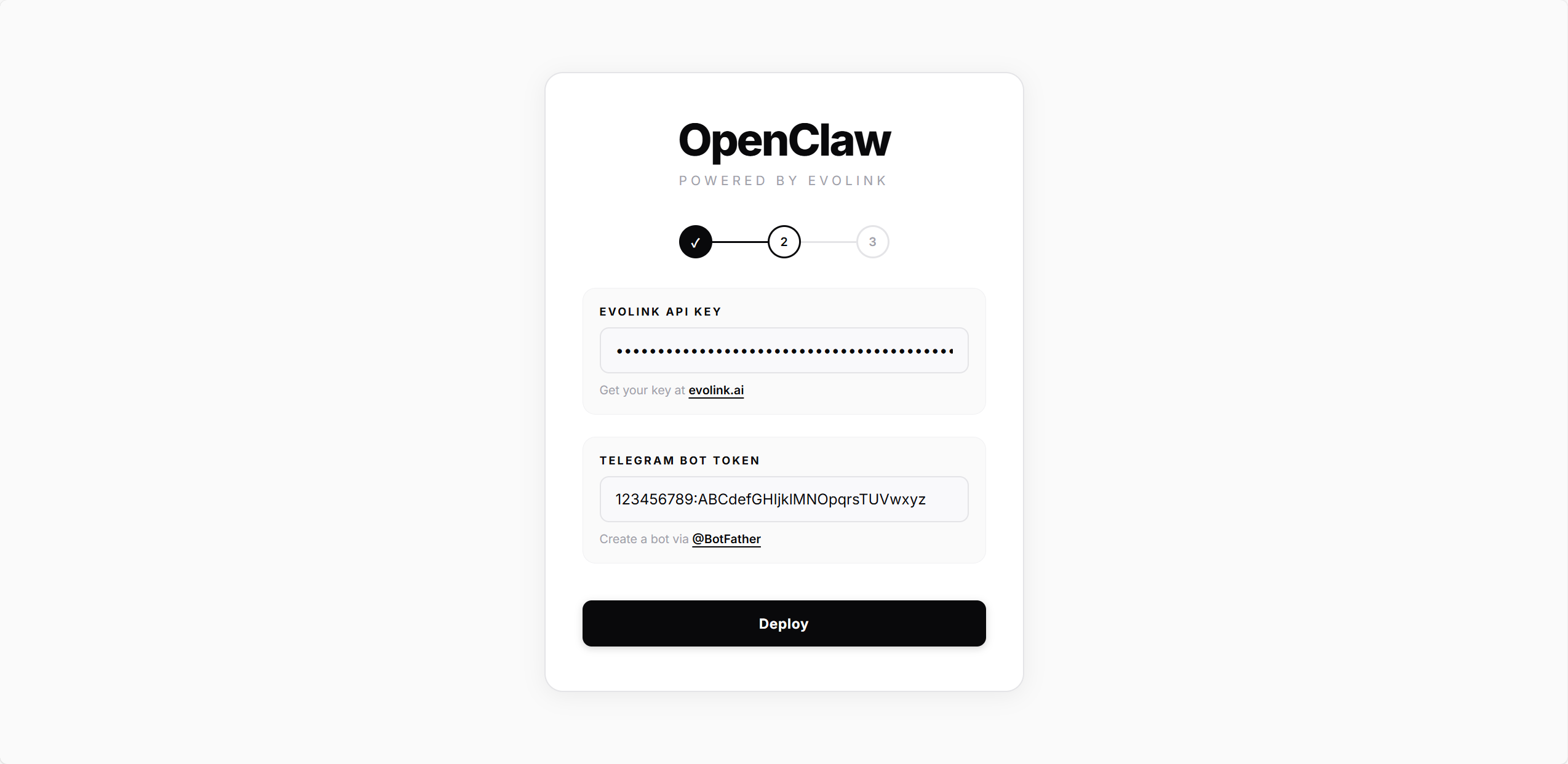
Enter the Bot Token from @BotFather, then click Deploy.The script will automatically:
- Create the OpenClaw config file
- Write model and API Key settings
- Configure and enable the Telegram plugin
- Install and start the gateway service
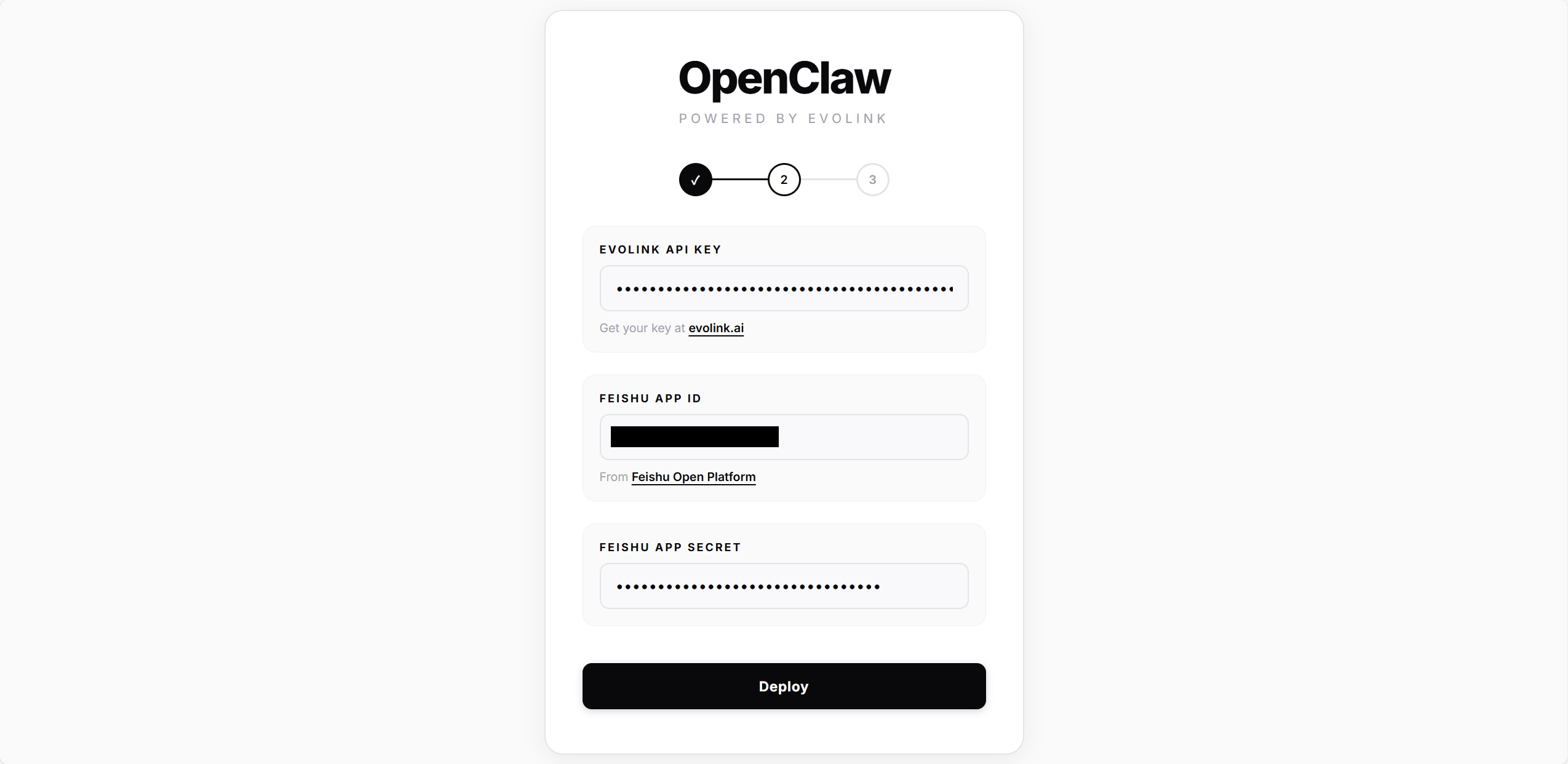
Enter the App ID and App Secret from Feishu Open Platform, then click Deploy.The script will automatically:
- Create the OpenClaw config file
- Write model and API Key settings
- Configure the Feishu plugin (write App ID / App Secret) and enable it
- Install and start the gateway service
Wait for the progress bar to complete, then you’ll advance to the next step automatically.
2.3 — Connect
- Telegram
- Feishu
Enter your Telegram User ID (the numeric ID from @userinfobot), then click Connect.The script writes this ID to the allowedUsers config — only this user will be able to chat with the Bot. Once connected, you’ll be redirected to the home page.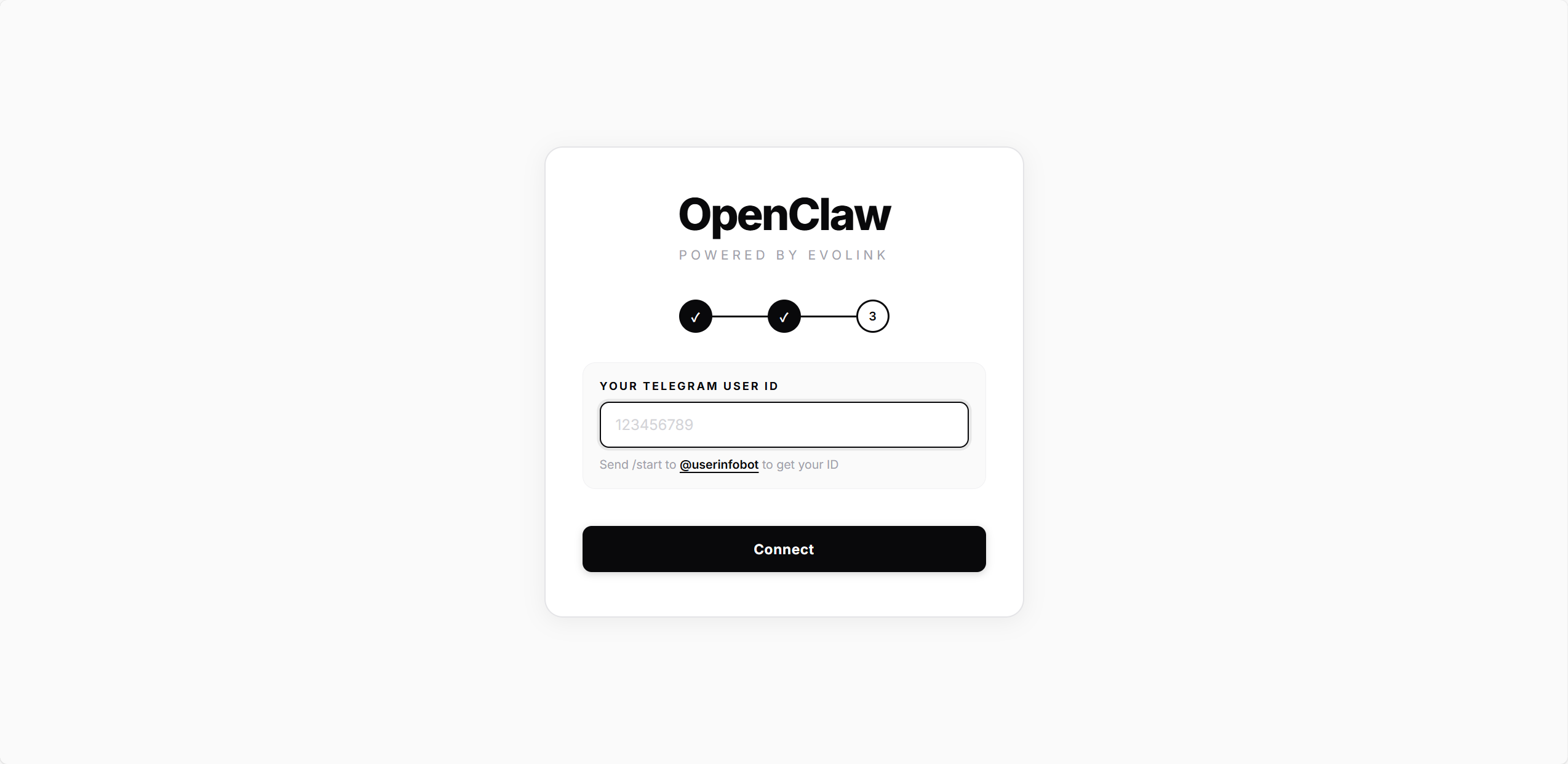
Deployment is complete. Now return to Feishu Open Platform to configure event subscription.
Before configuring event subscription, make sure the following are done:
- Feishu channel configuration is complete (see Step 2 deployment)
- Gateway is running (check with
openclaw gateway status)
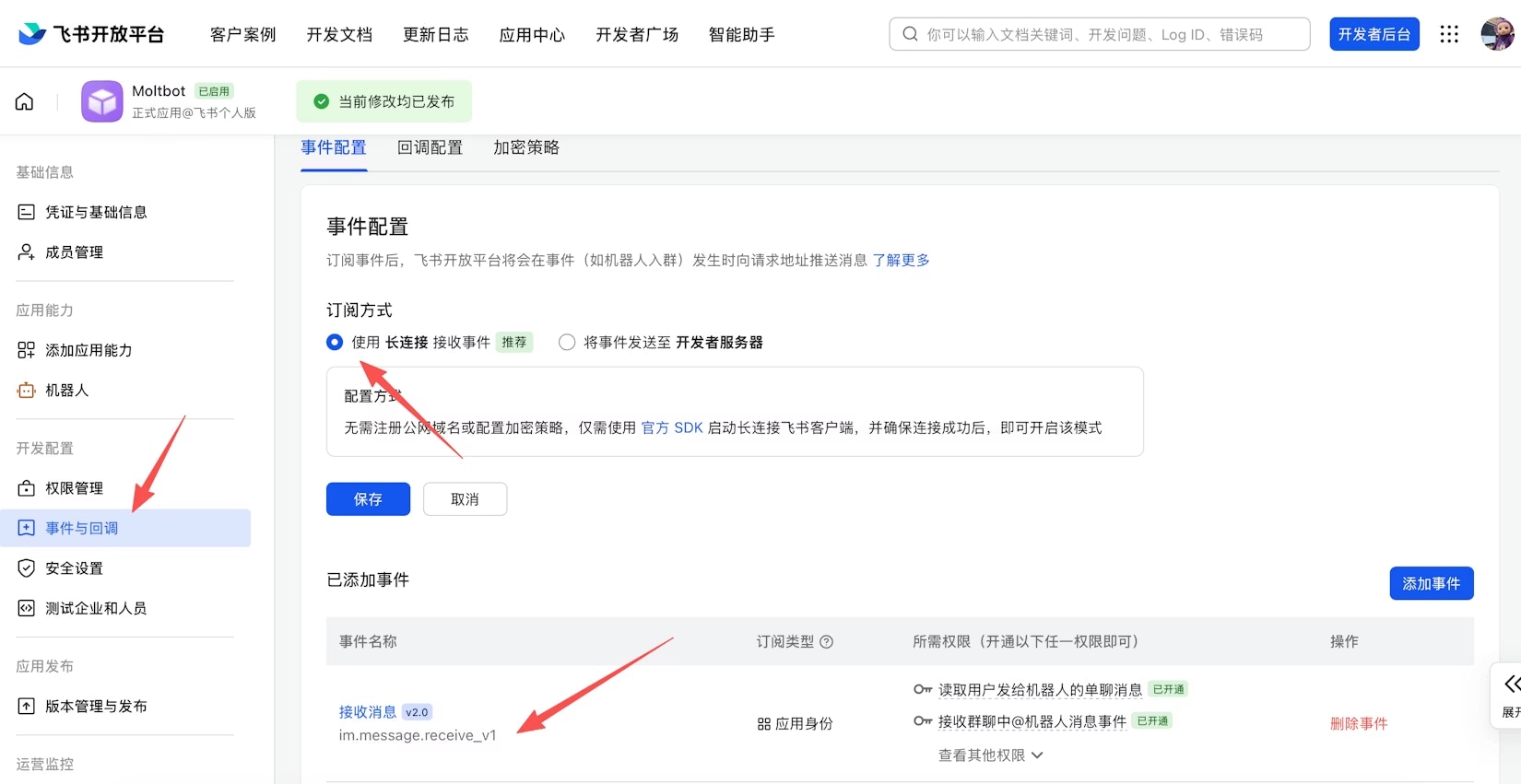
On the Event Subscription page:
- Select Use long connection to receive events (WebSocket mode)
- Add event:
im.message.receive_v1(receive messages)
If the gateway is not started or the channel has not been added, the long connection settings will fail to save.
- Under “Version Management & Release”, create a version and submit for review
Feishu apps require admin approval before they can be used. Enterprise custom apps are usually approved automatically.
Click Done — the script will restart the gateway to establish the Feishu WebSocket connection. After redirecting to the home page, you can start messaging the Bot on Feishu.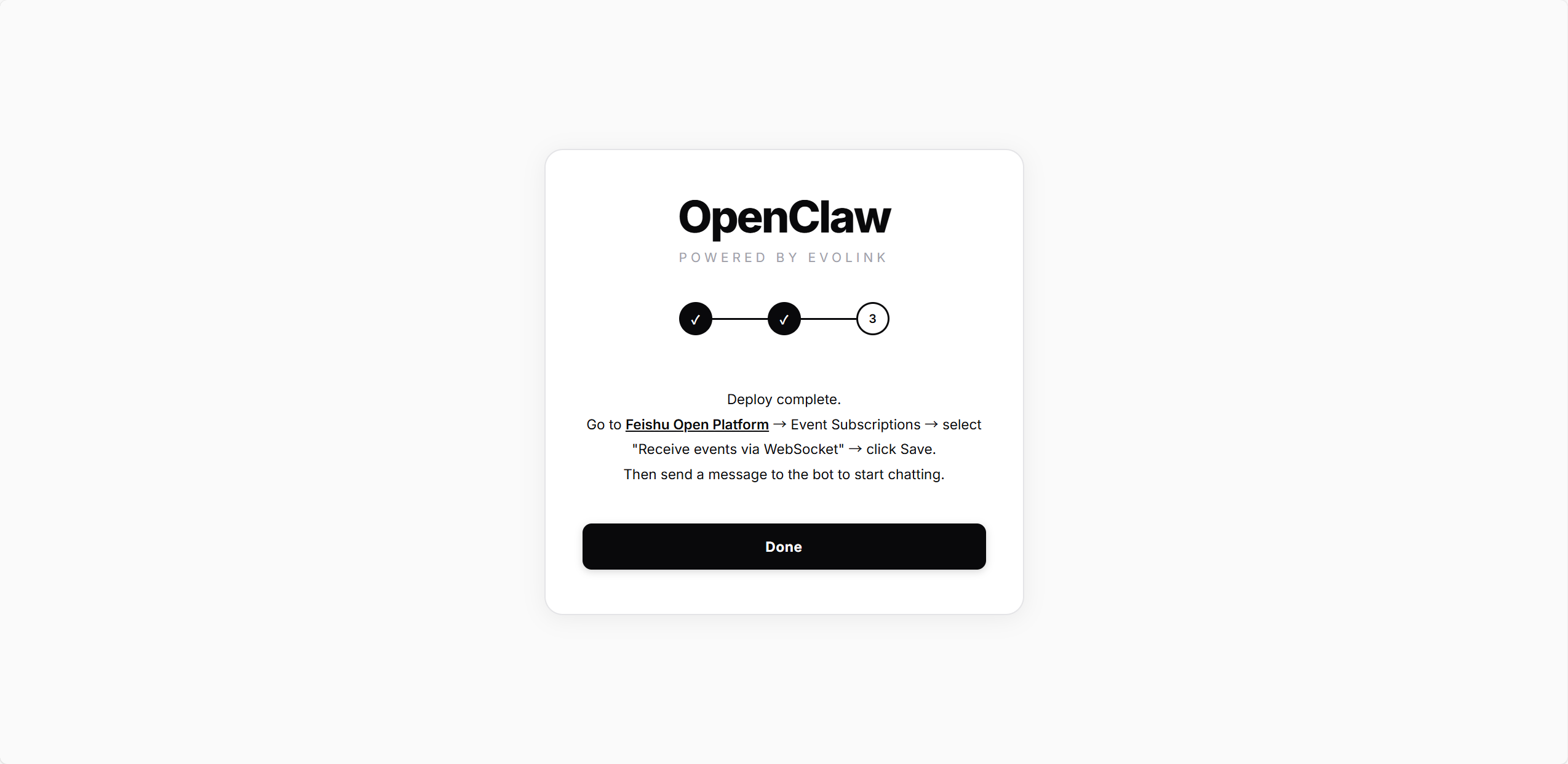
Manage Instances
After deployment, the home page displays all instances: 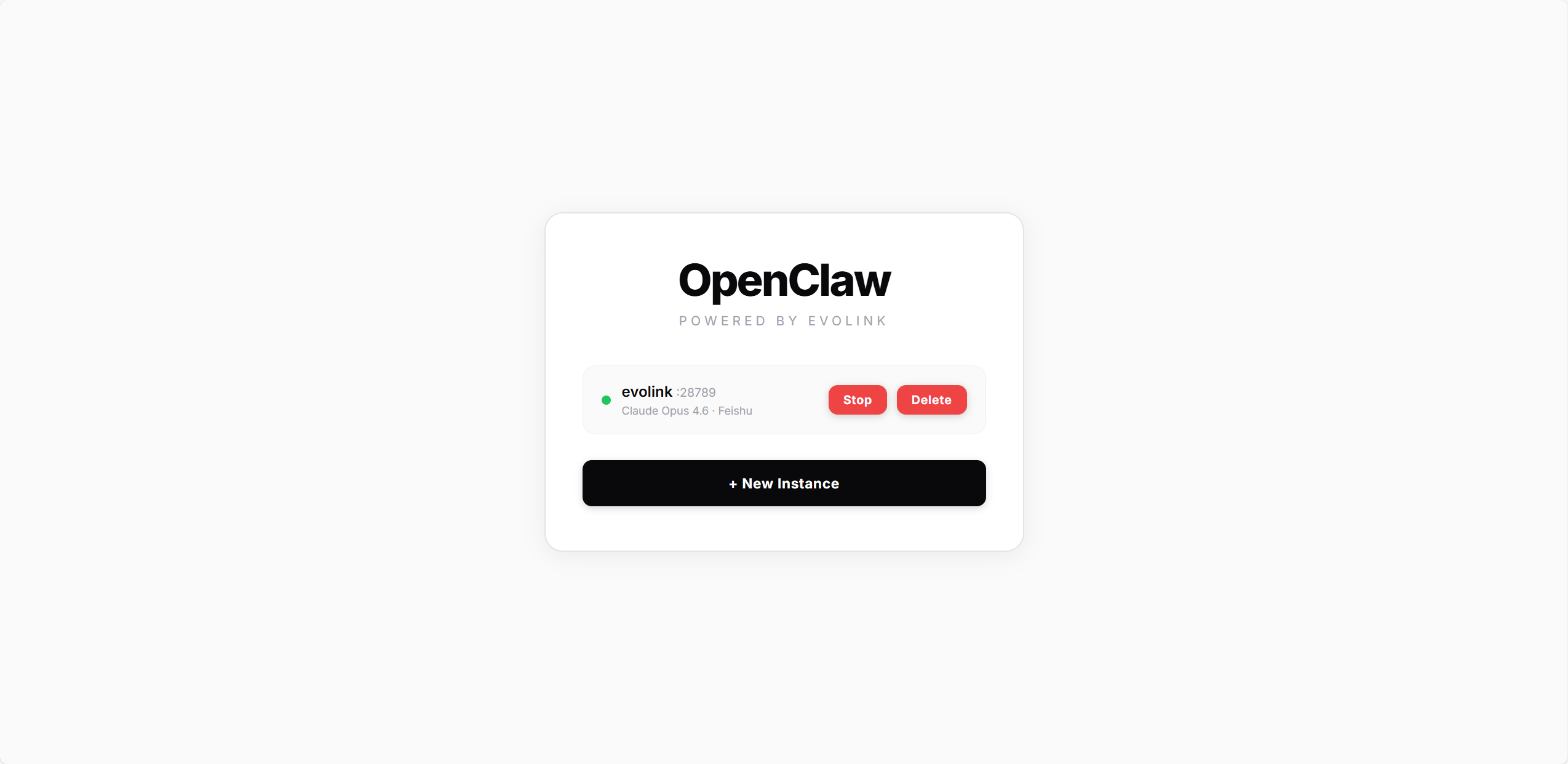
StatusDescription🟢 GreenGateway running🔴 RedGateway stopped
Each instance card shows the model and channel in use. Available actions:
- Start / Stop: Start or stop the gateway service
- Delete: Remove the instance (stops the gateway and cleans up all config files)
Click + New Instance to create multiple instances, each running independently on a different port.