
CodeBuddy WorkBuddy
Configure Tencent CodeBuddy WorkBuddy to route through Z-Mint AI.
Overview
CodeBuddy and WorkBuddy are AI tools launched by Tencent Cloud that support custom AI model integration through models.json configuration files. By integrating them with Z-Mint AI API, you can directly use various AI model capabilities provided by Z-Mint AI.
CodeBuddy and WorkBuddy use the same configuration method. This document applies to both.
Prerequisites
Get Z-Mint AI API Key
- Log in to Z-Mint AI Console
- Find API Keys in the console, click “Create New Key” button, and copy the generated key
- API Key usually starts with
sk-, please keep it safe
Configuration Steps
1. Open Configuration File
CodeBuddy: ~/.codebuddy/models.json WorkBuddy: ~/.workbuddy/models.json
2. Add Evolink Model Configuration
Edit the models.json file and add the following configuration:
Currently only supports OpenAI SDK format API integration.
{
  "models": [
    {
      "id": "zmint/auto",
      "name": "Evolink Auto (Smart Routing)",
      "vendor": "Evolink",
      "apiKey": "sk-your-api-key-here",
      "url": "https://aigc.zhengmi.org/v1/chat/completions",
      "supportsToolCall": true,
      "supportsImages": true
    },
    {
      "id": "gpt-5.4",
      "name": "Evolink GPT-5.4",
      "vendor": "OpenAI",
      "apiKey": "sk-your-api-key-here",
      "url": "https://aigc.zhengmi.org/v1/chat/completions",
      "supportsToolCall": true,
      "supportsImages": true
    },
    {
      "id": "doubao-seed-2.0-mini",
      "name": "Evolink Doubao Seed 2.0 Mini",
      "vendor": "ByteDance",
      "apiKey": "sk-your-api-key-here",
      "url": "https://aigc.zhengmi.org/v1/chat/completions",
      "supportsToolCall": true,
      "supportsImages": true
    }
  ]
}
Please replace sk-your-api-key-here with your actual Z-Mint AI API Key.
More Available Models
In addition to the above examples, you can add the following models (same configuration format, add “Evolink ” prefix to name field): GPT Series:
gpt-5.2- Evolink GPT-5.2gpt-5.1- Evolink GPT-5.1gpt-5.1-chat- Evolink GPT-5.1 Chatgpt-5.1-thinking- Evolink GPT-5.1 Thinking
Gemini Series:
gemini-2.5-pro- Evolink Gemini 2.5 Progemini-2.5-flash- Evolink Gemini 2.5 Flashgemini-3-pro-preview- Evolink Gemini 3.0 Progemini-3-flash-preview- Evolink Gemini 3.0 Flash
Doubao Seed 2.0 Series:
doubao-seed-2.0-pro- Evolink Doubao Seed 2.0 Prodoubao-seed-2.0-lite- Evolink Doubao Seed 2.0 Litedoubao-seed-2.0-code- Evolink Doubao Seed 2.0 Code
Kimi K2 Series:
kimi-k2-thinking- Evolink Kimi K2 Thinkingkimi-k2-thinking-turbo- Evolink Kimi K2 Thinking Turbo
3. Save and Restart
After saving the configuration file, the tool will automatically detect configuration changes and reload (1 second debounce delay). After configuration is complete, you can see all configured Evolink models in the model selection dropdown: 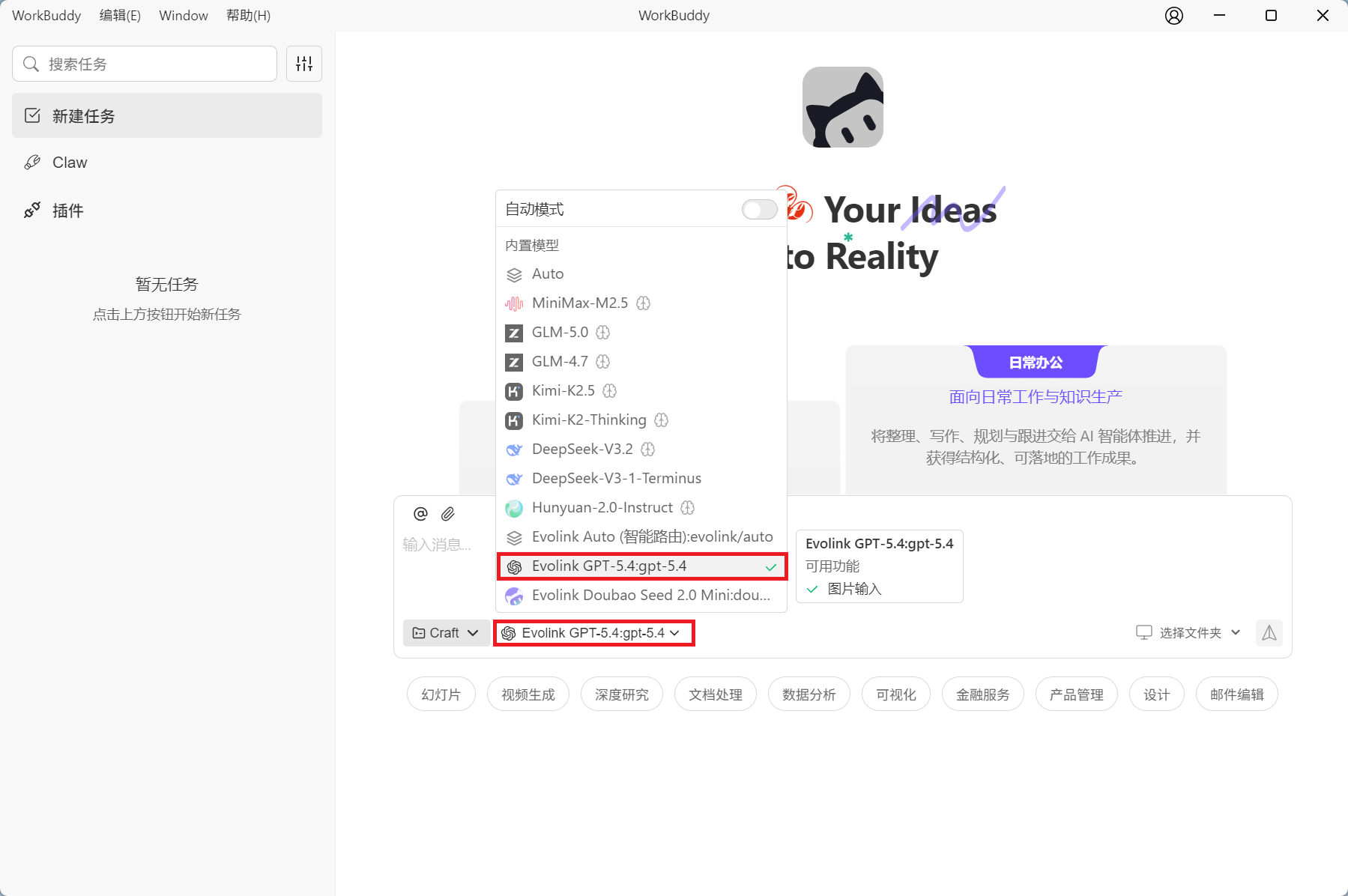
Using Evolink Auto Smart Routing
What is Evolink Auto?
Evolink Auto is an intelligent model routing feature that automatically selects the most suitable AI model based on your request content.
Core Advantages
- Smart Matching: Automatically analyzes request content and selects the most suitable model
- Cost Optimization: Prioritizes cost-effective models while ensuring quality
- Load Balancing: Automatically distributes requests among multiple models to improve system stability
- Transparent: Returns the actual model name used in the response
Usage
Select “Evolink Auto (Smart Routing)” in the model selection dropdown.
Limit Available Model List
If you only want to display specific models in the dropdown, you can use the availableModels field:
{
  "models": [
    // ... model configuration
  ],
  "availableModels": [
    "zmint/auto",
    "gpt-5.4",
    "doubao-seed-2.0-mini"
  ]
}
FAQ
1. Where is the configuration file?
CodeBuddy:
- macOS/Linux:
~/.codebuddy/models.json - Windows:
C:\Users\<username>\.codebuddy\models.json
WorkBuddy:
- macOS/Linux:
~/.workbuddy/models.json - Windows:
C:\Users\<username>\.workbuddy\models.json
2. Does it support project-level configuration?
Yes. In addition to user-level configuration, you can create configuration files in the project root directory: CodeBuddy: <project-root>/.codebuddy/models.json WorkBuddy: <project-root>/.workbuddy/models.json
Project-level configuration has higher priority than user-level configuration. It is recommended to configure global models at the user level and project-specific models at the project level.
3. What if the configuration doesn’t work?
- Check if the JSON format is correct (use a JSON validator)
- Confirm the API Key is correct
- Try restarting the application
4. Which models are supported?
Z-Mint AI supports models from OpenAI, Anthropic, Google and other vendors. See Model List for details.
5. Is the API Key secure?
The API Key is stored in the local configuration file and will not be uploaded to the cloud. It is recommended to set file permissions to prevent unauthorized access.